
For the main Alipay registration route, you need a phone number that can receive SMS messages. For identity verification, prepare your passport for international travel; for payments, use a bank card that supports overseas purchases. You can set up your account and add a card before departure.
This guide covers installation through to your first payment. The main registration route uses a phone number; email registration is covered separately. Each step names the buttons to tap and explains what to do when a different screen appears.
What you will need
- Your own phone and SIM card. Keep access to SMS messages during your trip. A data-only travel eSIM does not replace the number linked to your account.
- A valid passport for international travel. If your country issues a separate domestic passport, use your international passport for this process. If one passport serves both purposes, you do not need a separate document.
- Your own bank card and access to your banking app. Check that international online payments are enabled. Russian-issued Visa and Mastercard cards do not work abroad through their international networks; check other cards with their issuer.
You do not need a Chinese SIM card or bank account to register with an overseas phone number. You do not need to top up your Alipay balance to pay with a linked overseas card.
1. Install the app
Open Alipay in Google Play or the App Store. Check the name Alipay and the developer Alipay (Hangzhou) Technology. You can also use Alipay’s official download page.
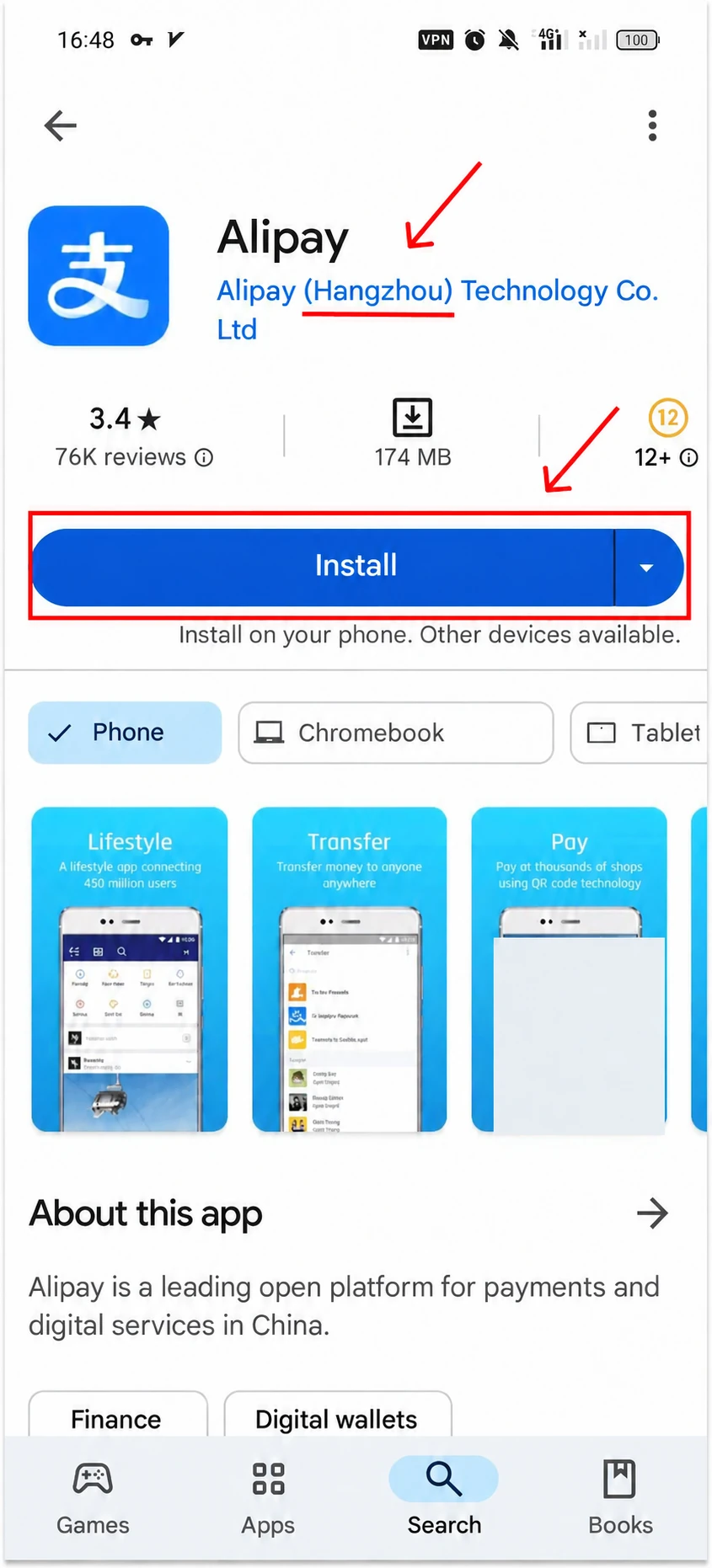
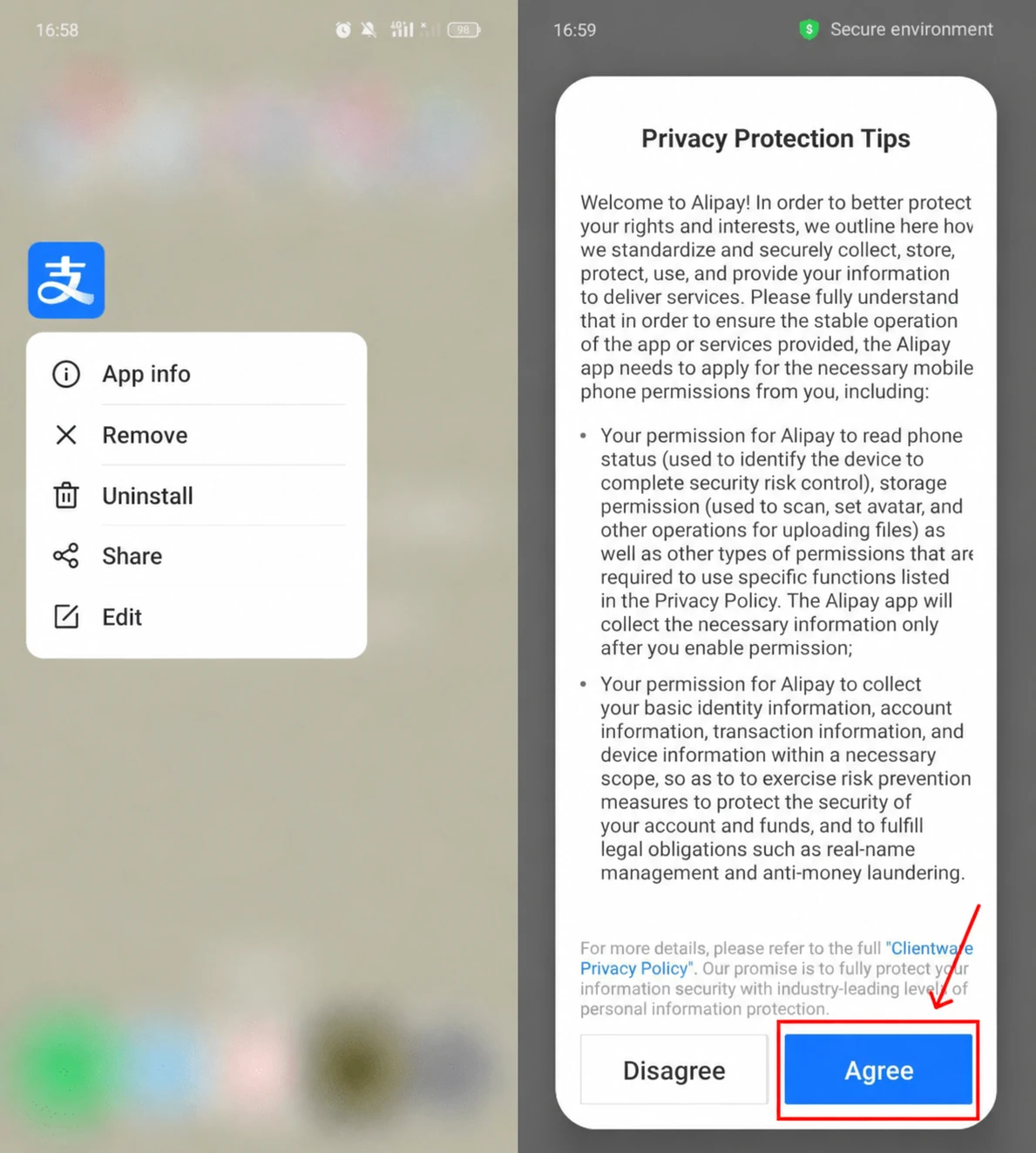
Tap Install, wait for the download and open the app. Read the terms on the first screen. If you accept them, tap Agree to continue.
2. Register with your phone number
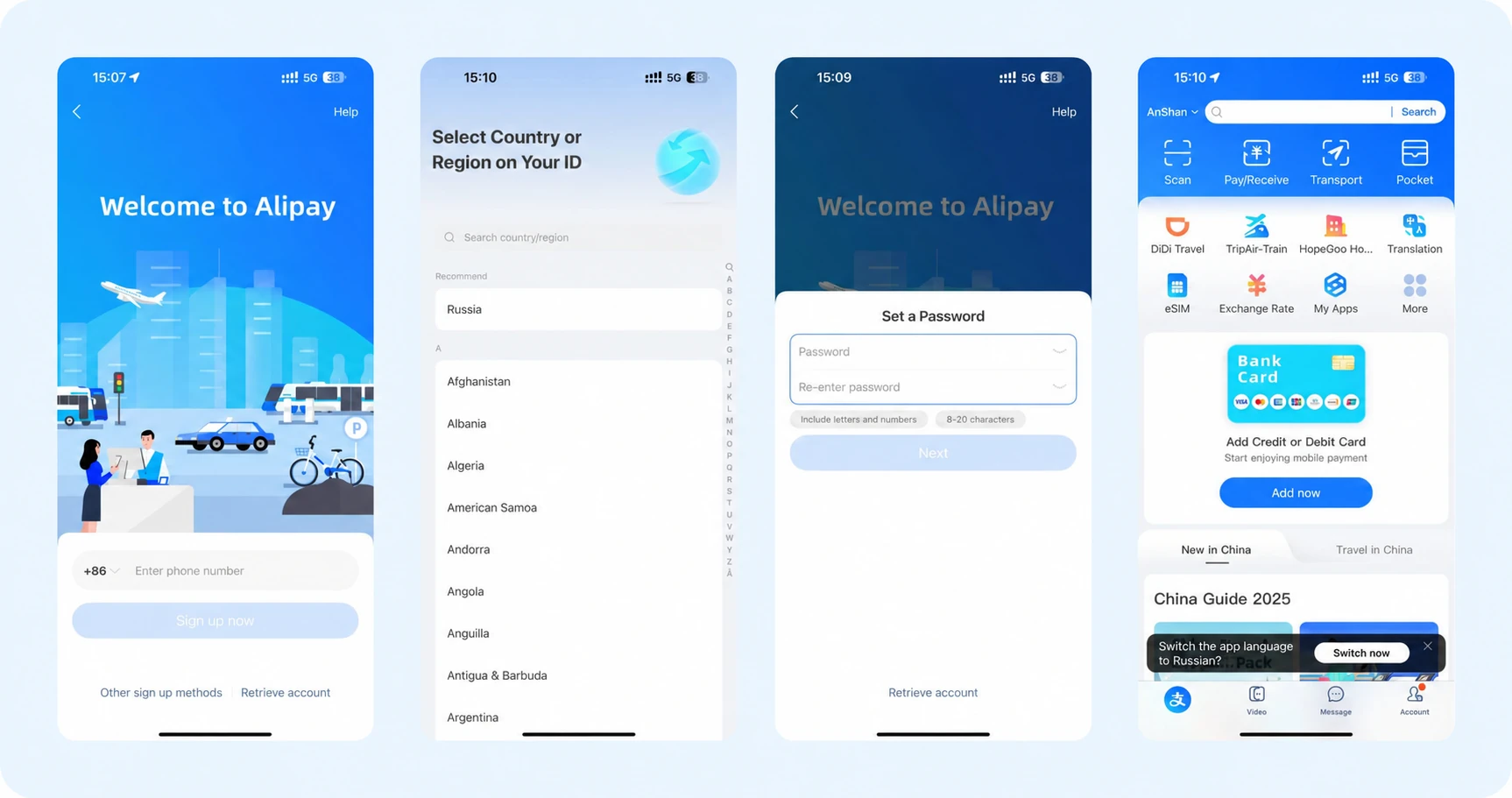
Tap the country code beside the phone field to open the country list. Find and select the country that issued your number. Enter your number without repeating the country code, then tap Next. If the screen asks you to log in to an existing account, select Sign up first.
Read the agreement and tap Agree to accept it.
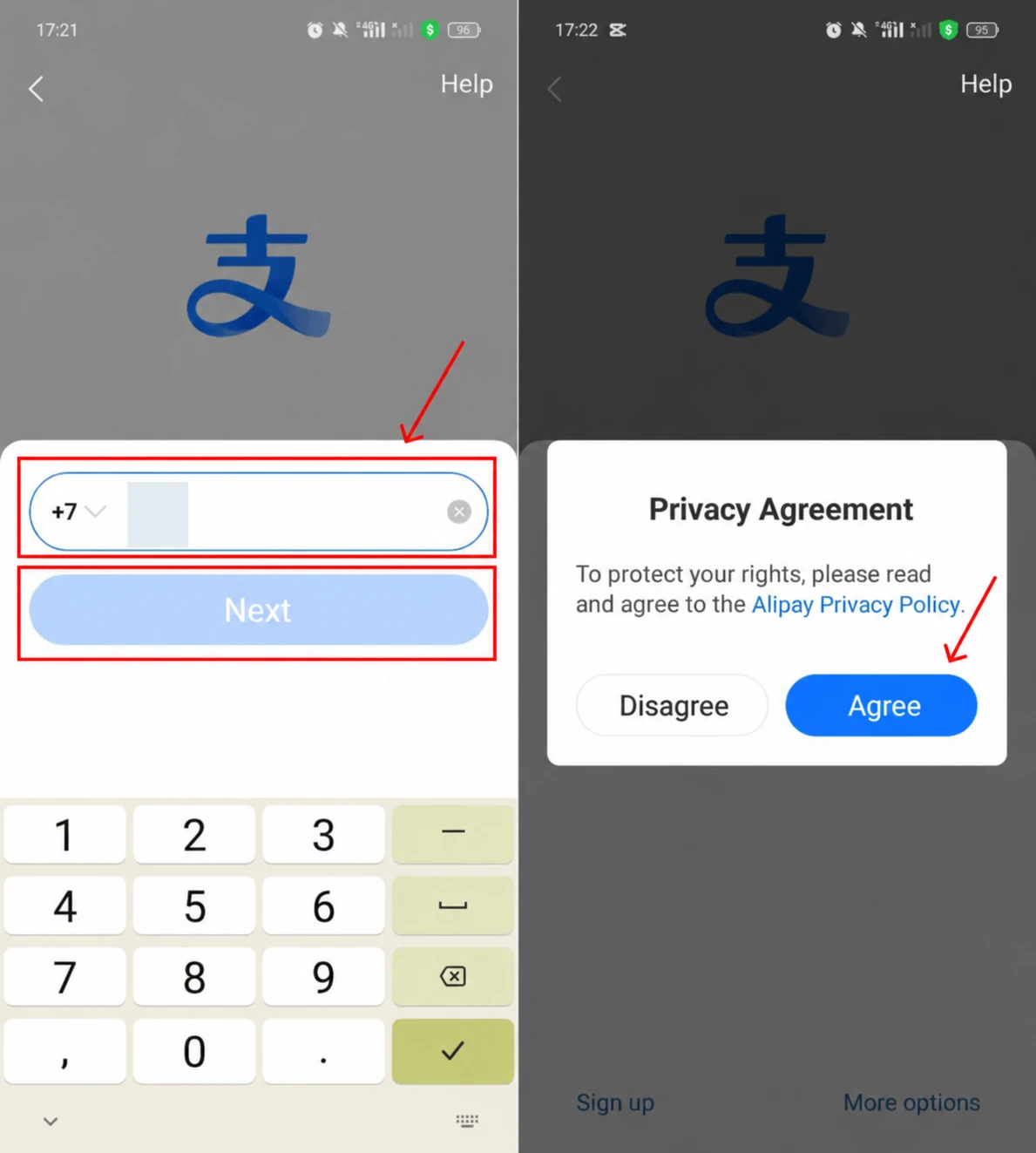
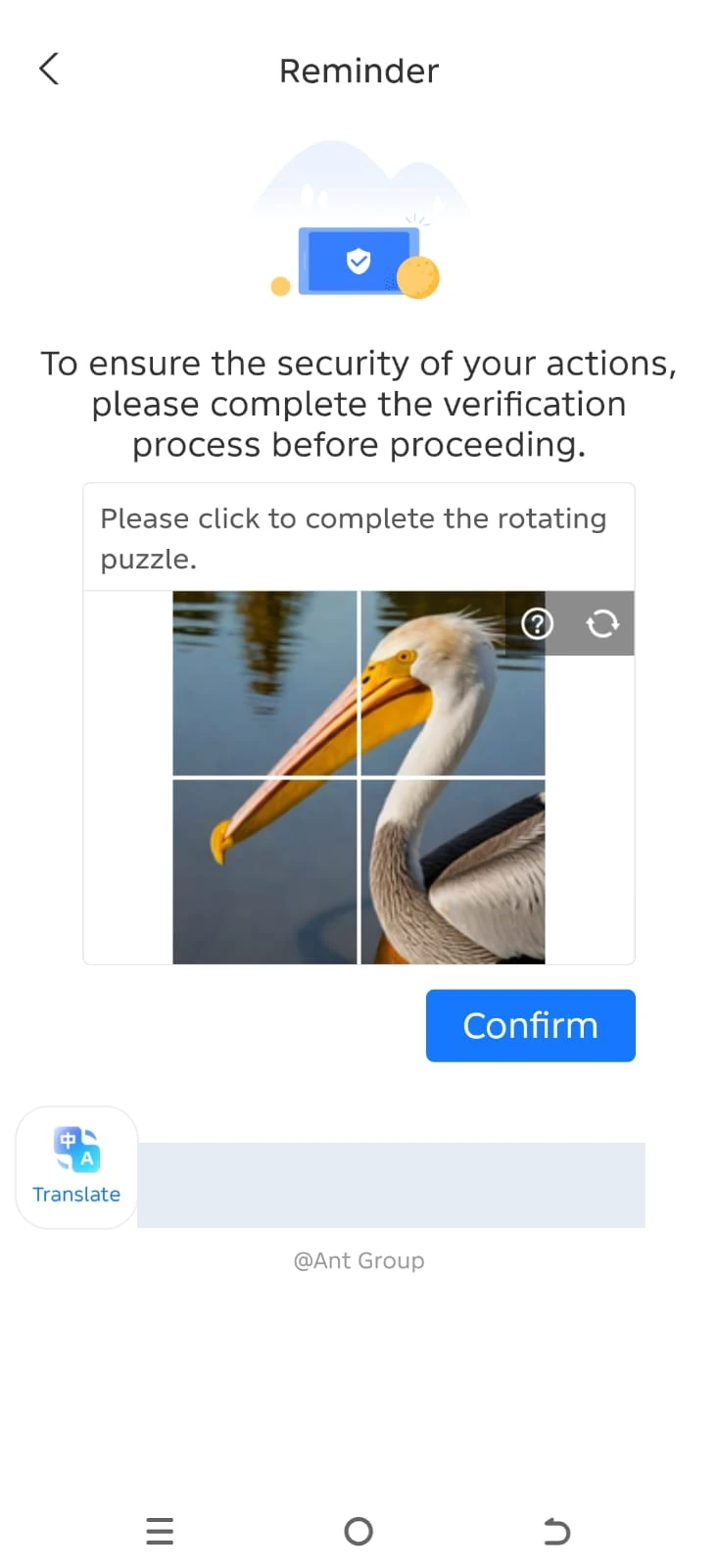
On the security check screen, complete the picture task and tap the confirmation button. If the SMS code field opens instead, go straight to entering the code.
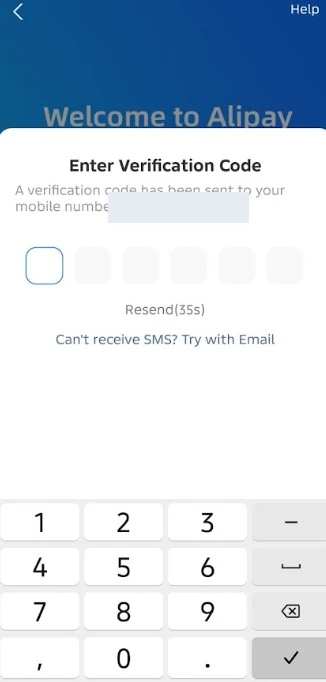
Enter the code from the SMS. Do not share it with anyone else. Once your number is confirmed, continue setting up the account. If a document country screen opens, select your passport’s country. This is separate from your phone’s country code and your travel destination.
On the Set a Password screen, create a login password, repeat it in Re-enter password and tap Next. Follow the requirements below the field: the screen shown asks for letters and numbers, 8–20 characters in total. If the home screen opens instead, continue to language selection.
No SMS received: check your number, country code and SMS reception. Wait for the timer to finish before requesting another code. If registration freezes over Wi-Fi, turn Wi-Fi off and try the action again using mobile data.
Registering by email
Use this route if the app displays an email registration button below the phone verification field. Tap that button. If it is absent, continue with phone registration or contact support.
Enter your email address, tap Sign up now and enter the code from the email. Check your spam folder if the message is not in your inbox. If the app then asks for a phone number or identity verification, complete that request in Alipay. Using email does not remove those requirements.

3. Choose your language and the international interface
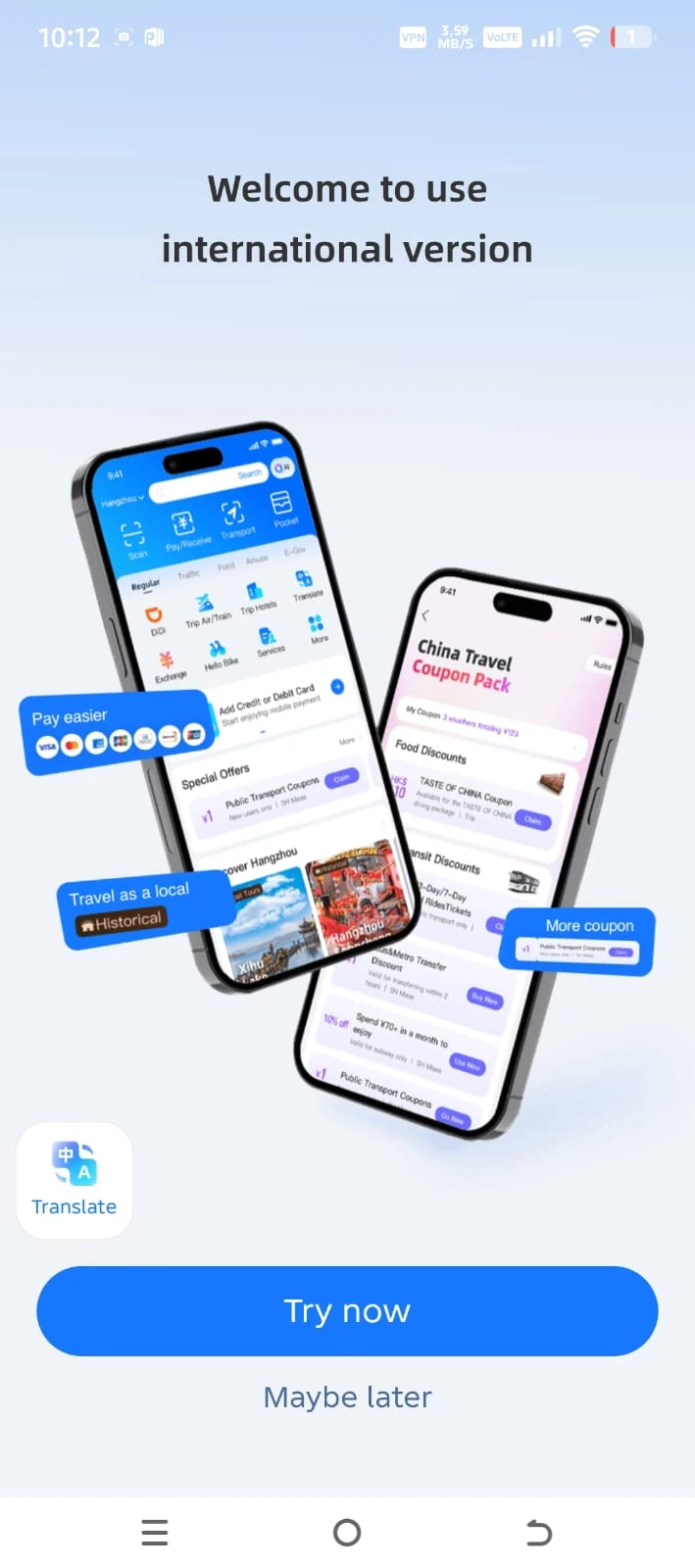
If an International Version prompt appears, tap Try Now. This mode runs inside Alipay; you do not need another app. If the home screen is already open, go straight to the language settings.
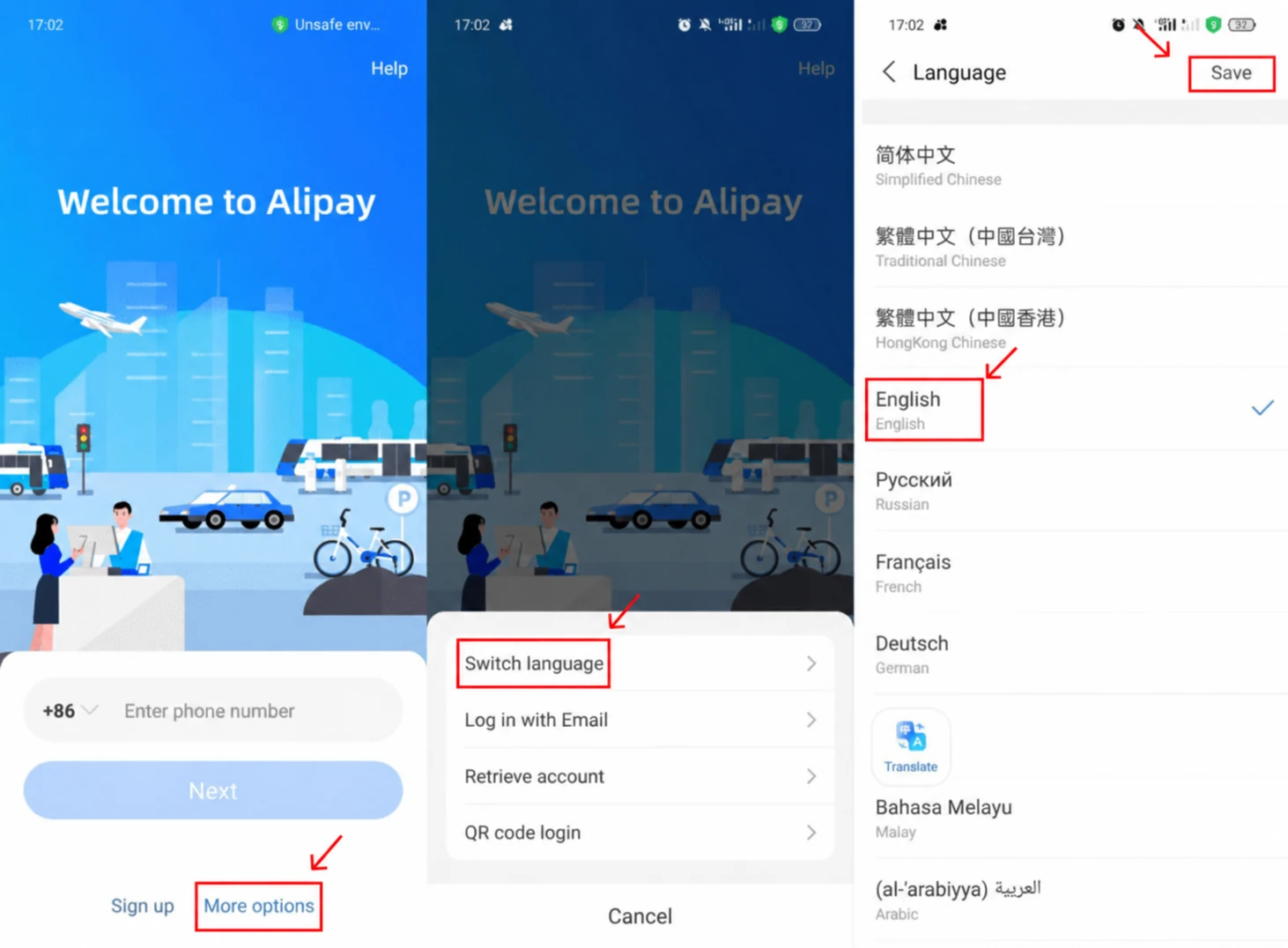
On the login screen, open More options → Switch language. Select English and tap Save.
If you are already signed in, open Me / Account → gear icon → General → Language.
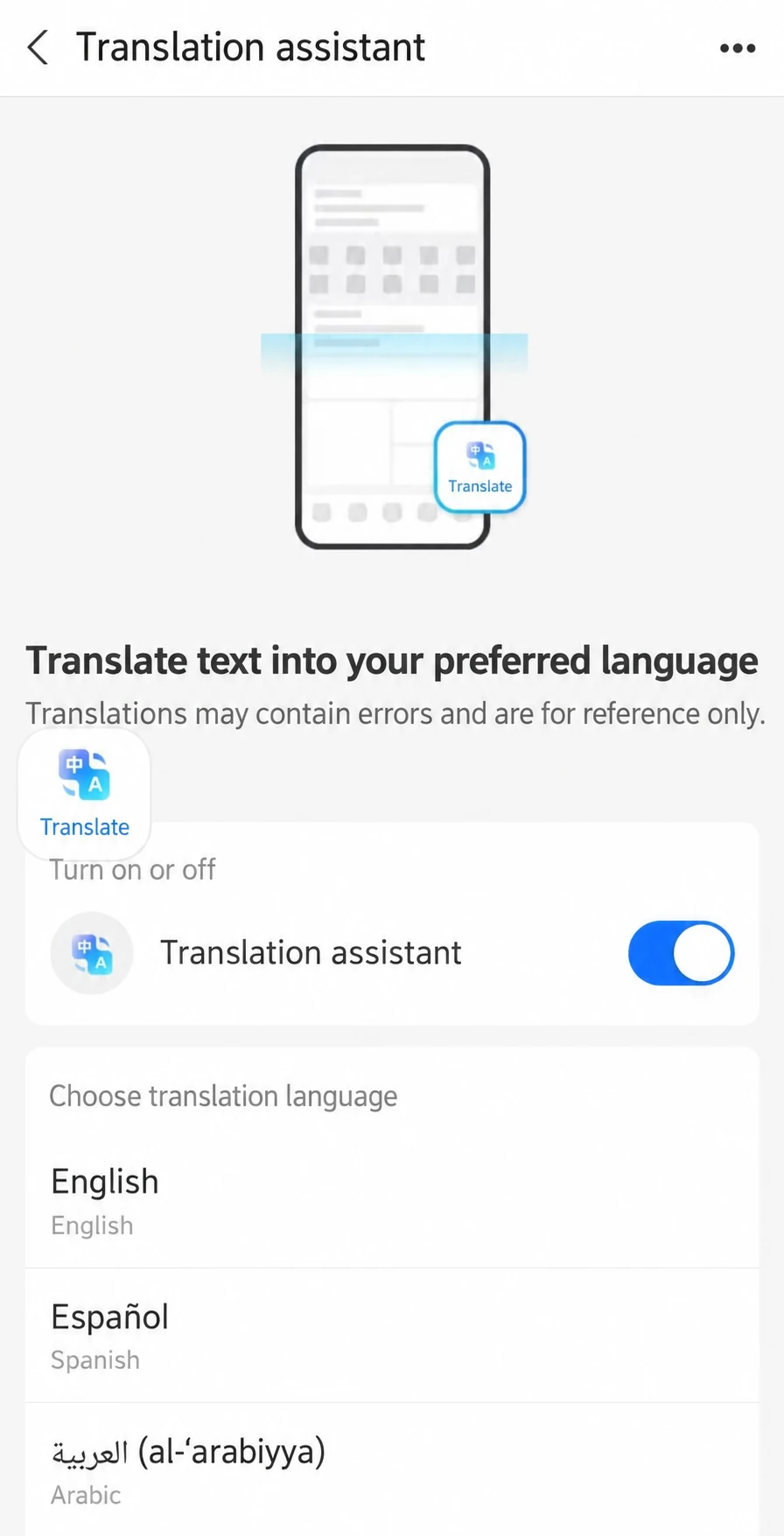
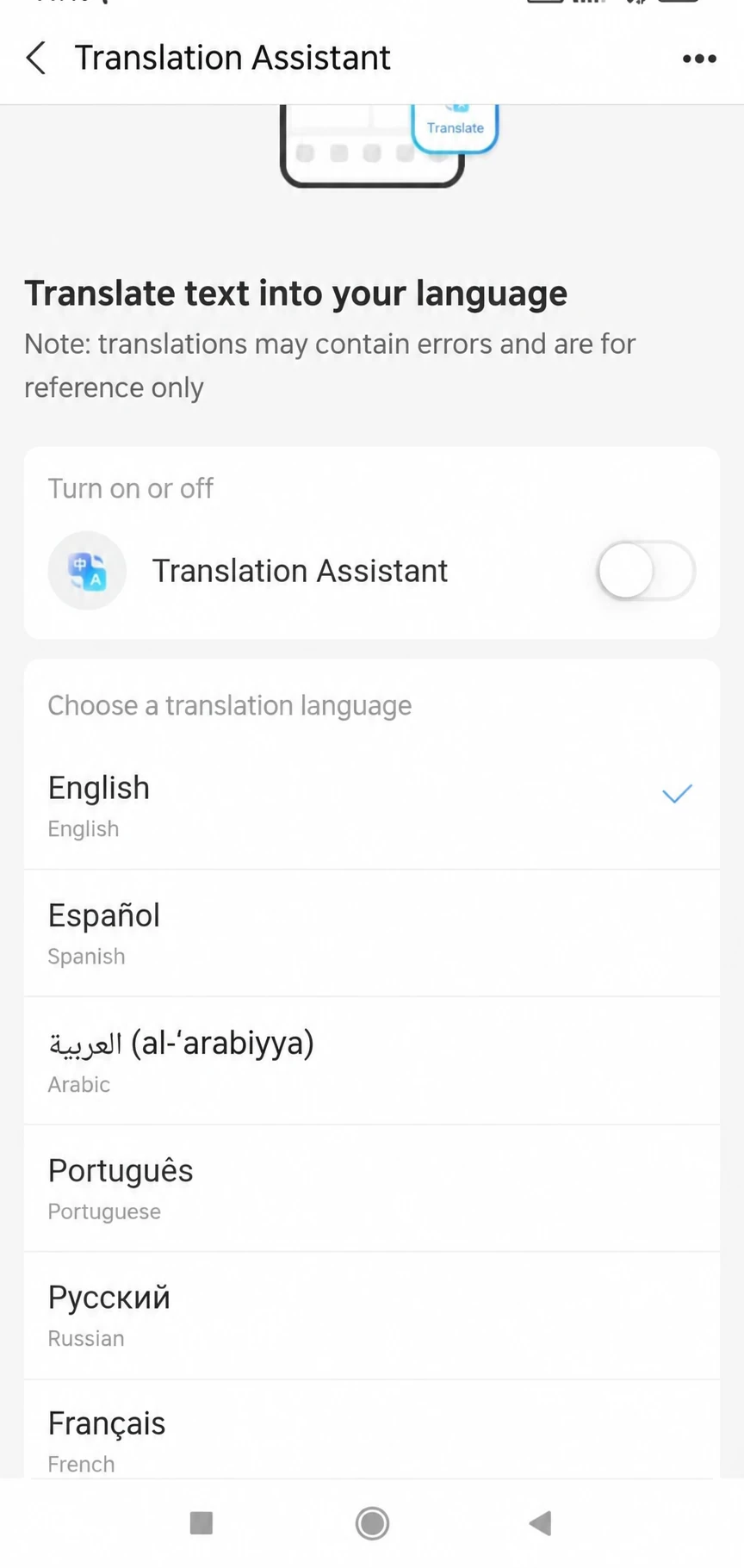
Select English and tap Save. The translation assistant and interface language are separate settings: some mini-programs remain in Chinese.
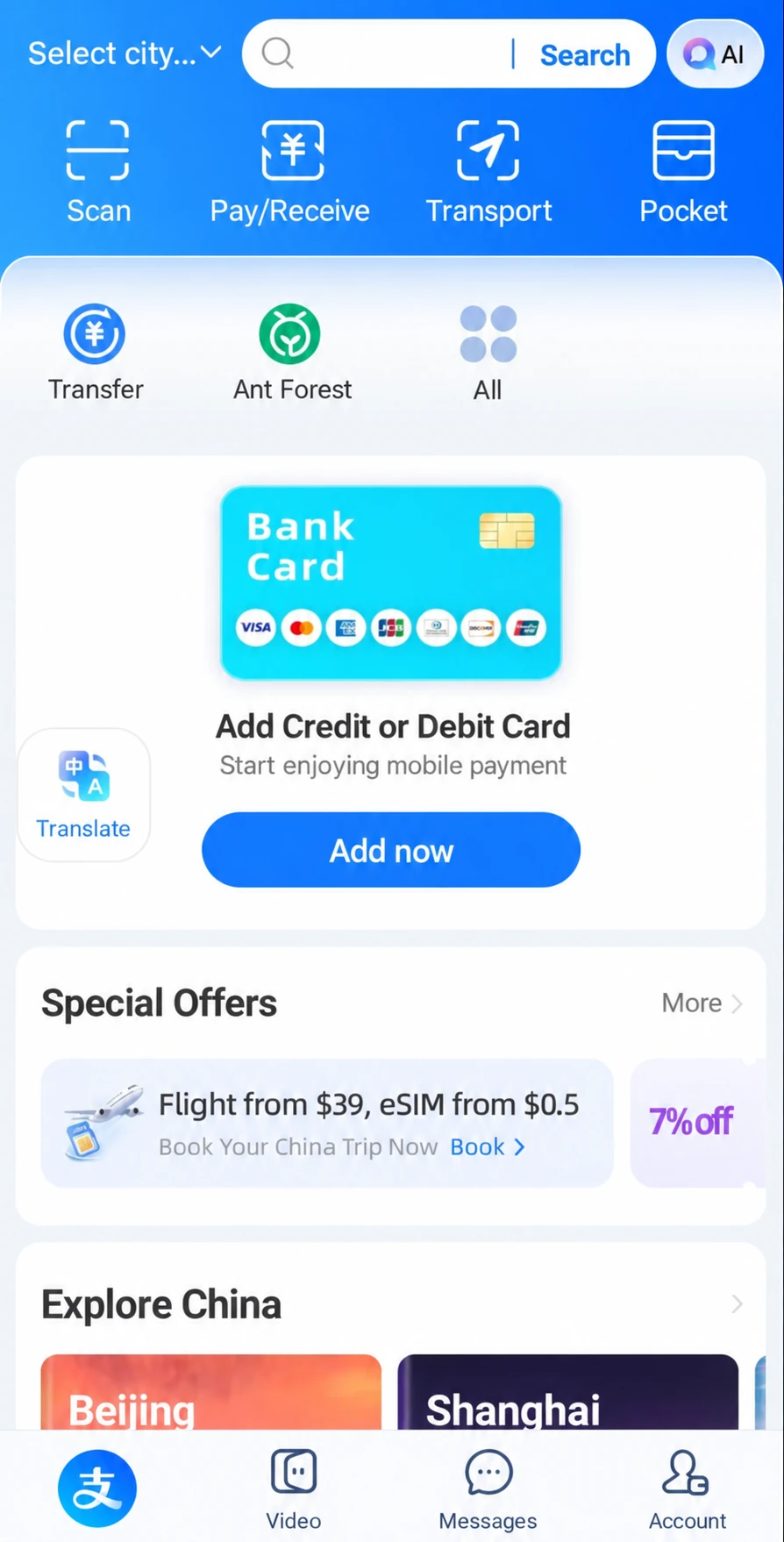
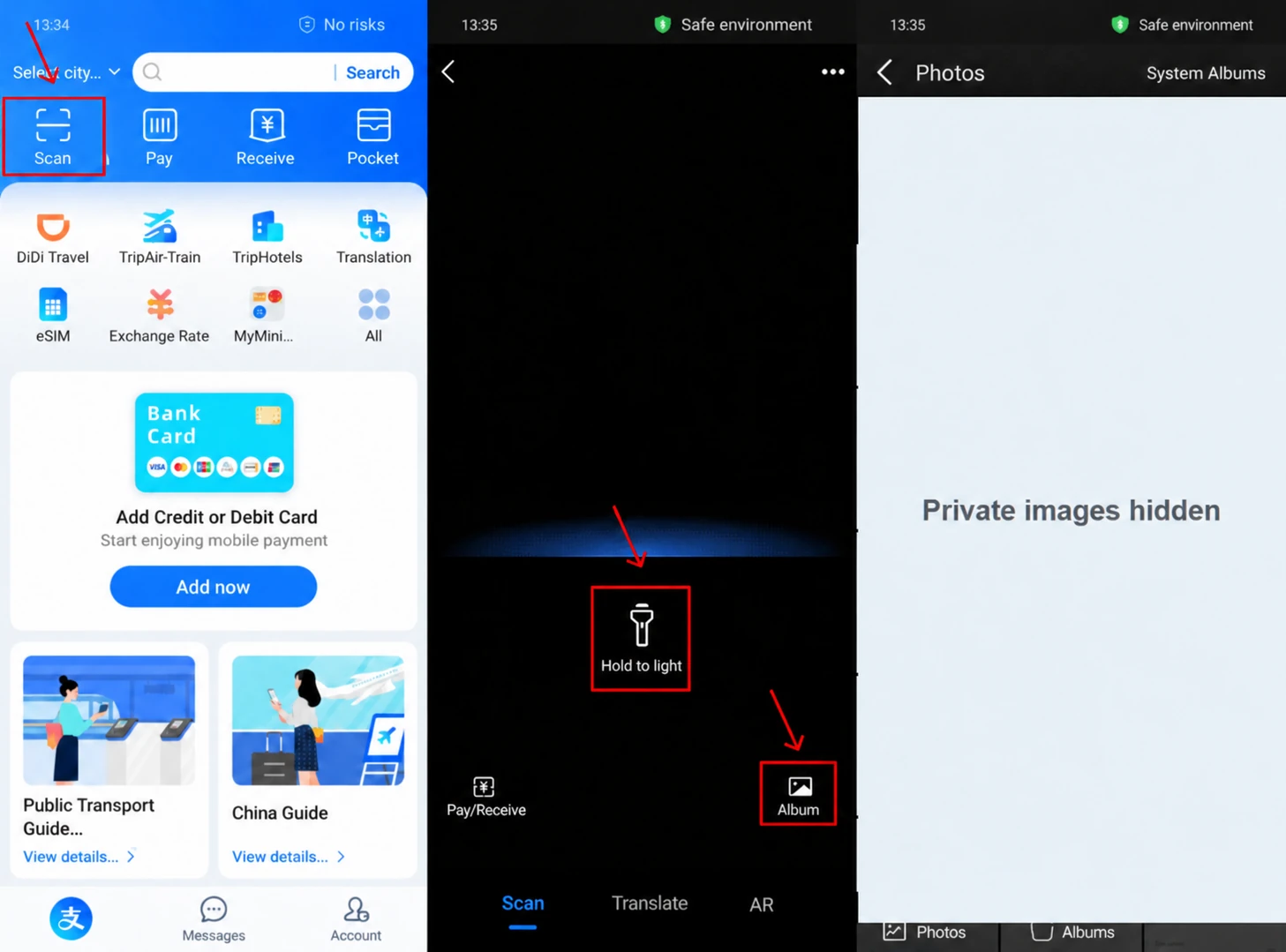
The home screen contains search, scanning and payment controls. The Account tab opens your settings, cards and transaction history.
4. Set a payment password
Open Account → gear icon → Payment Settings.
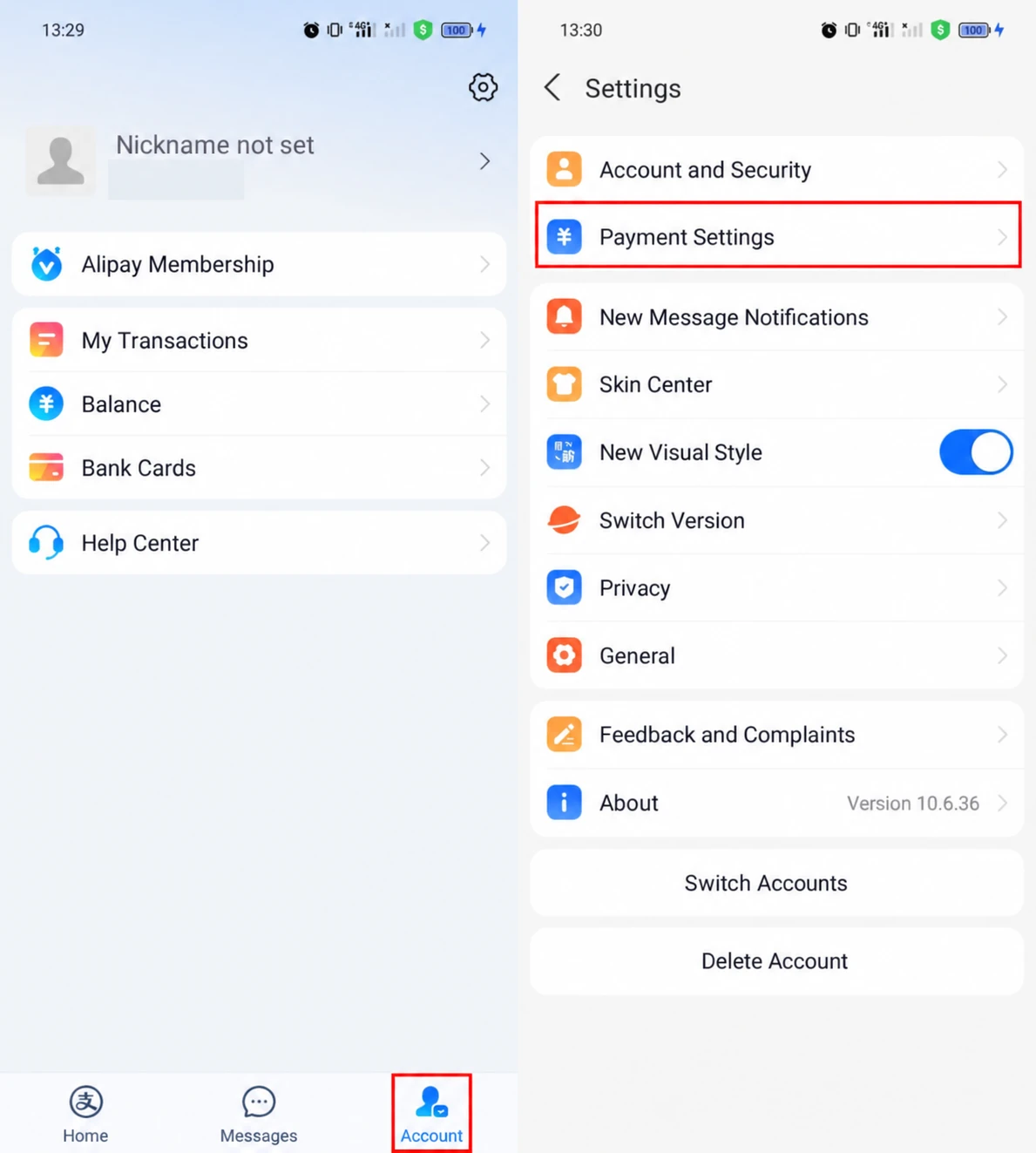
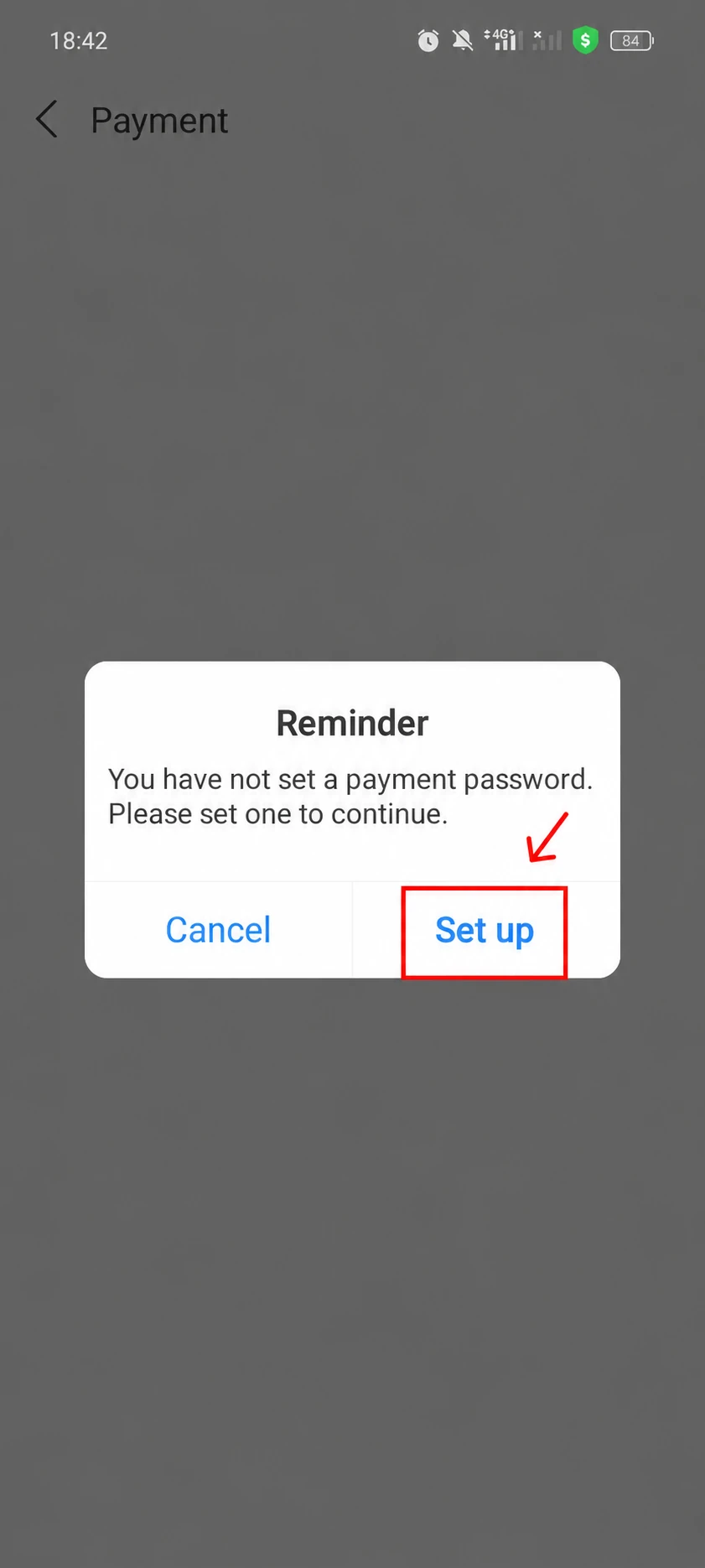
If a notice says that no payment password has been set, tap the blue Set up button to open setup. Enter a six-digit payment password, then enter it again to confirm.
If you already have a payment password, skip this step. If you have forgotten it, select the recovery option in Alipay.
Keep these three credentials separate: an SMS code confirms access to your number, a login password protects access to your account, and the Payment Password confirms payment actions. When creating a login password, follow the length and character requirements shown below its field.
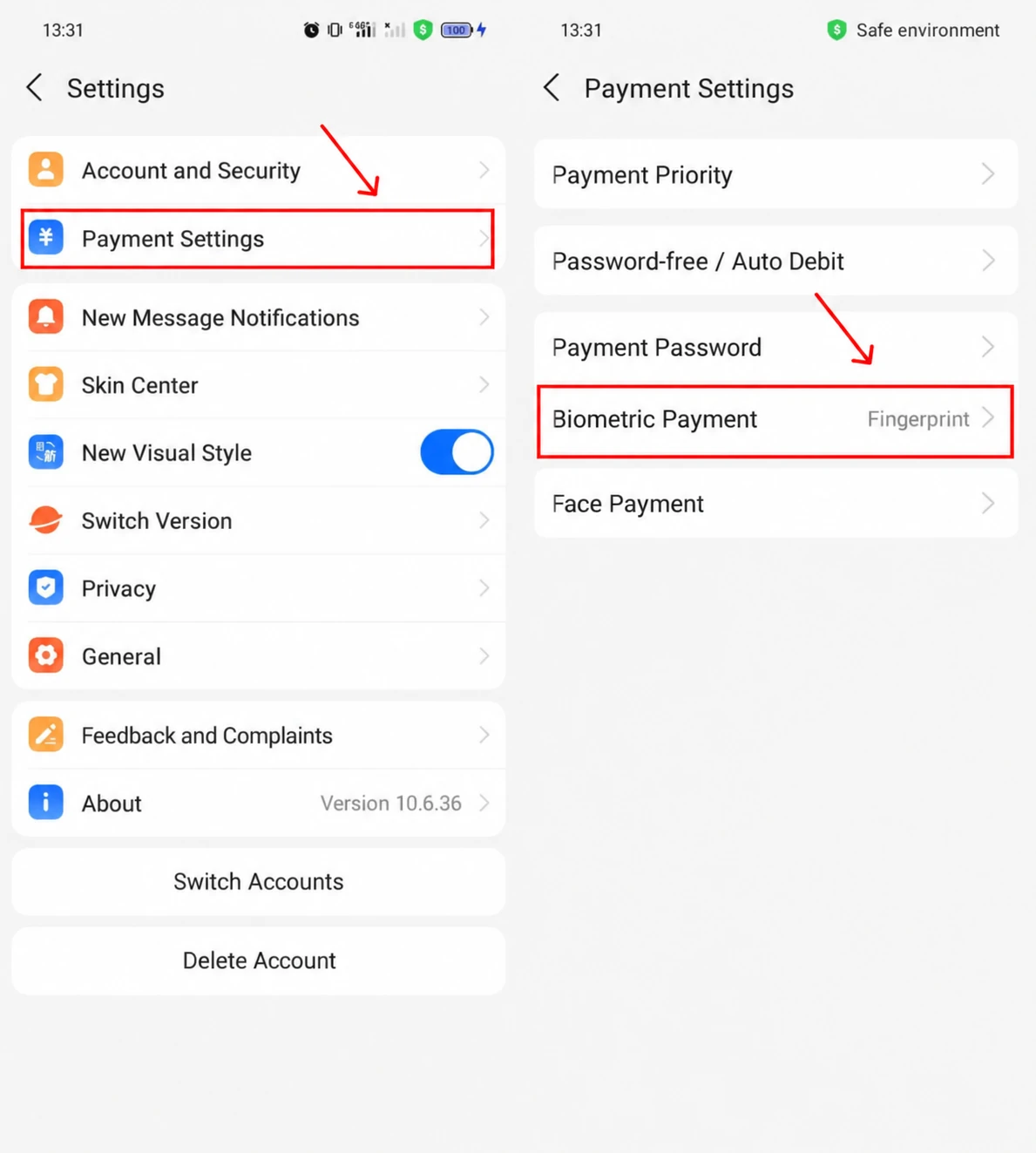
To confirm payments with your fingerprint, open Payment Settings → Biometric payment → Fingerprint and complete setup. If that option is absent, use an available confirmation method. Payment biometrics do not replace passport verification.
5. Enter your passport details
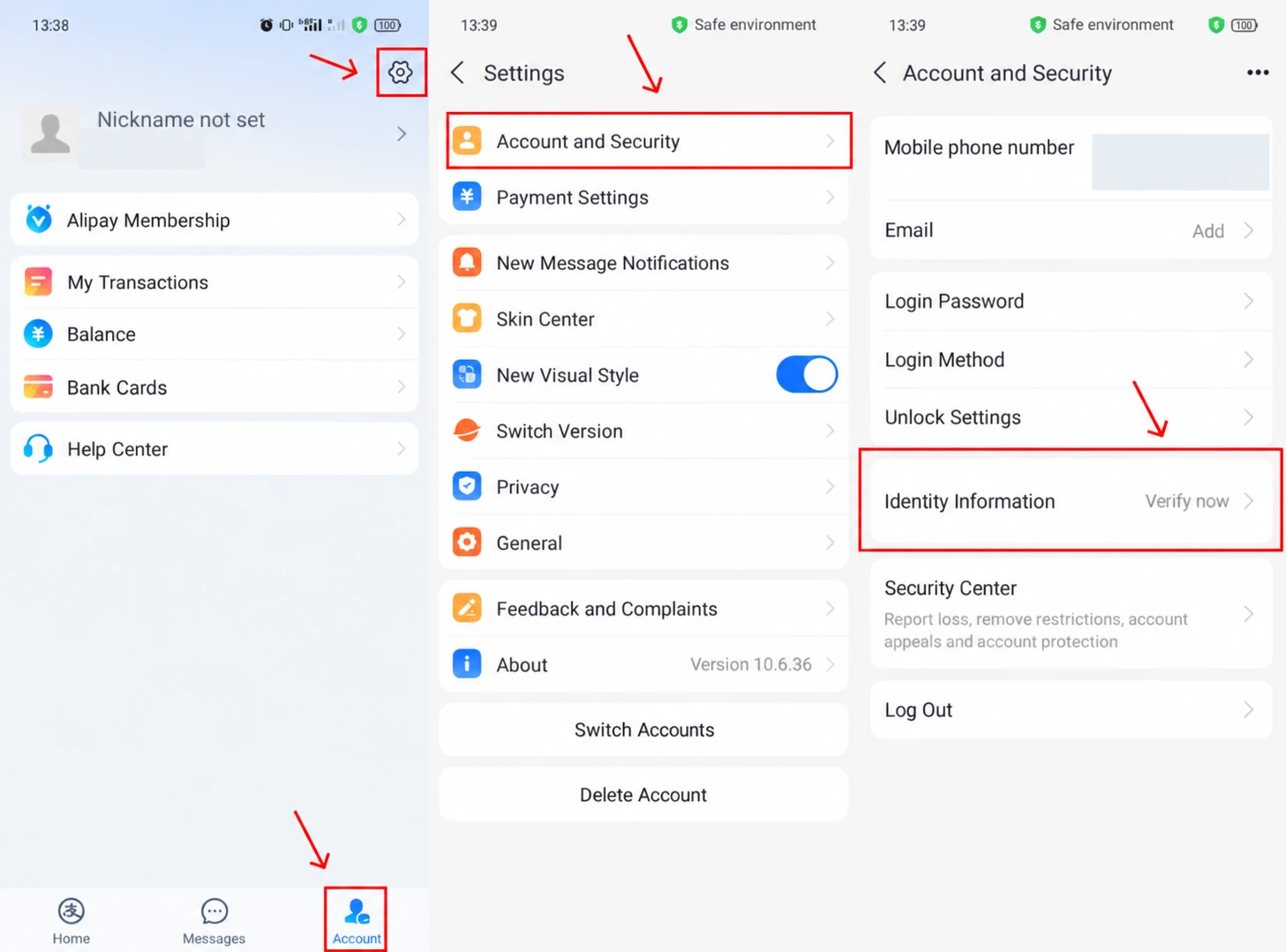
Open Account → gear icon → Account and Security, then Identity Information. If verification is incomplete, use the button beside its status to begin.
Select Passport. If a Chinese identity document is selected first, tap Non-Chinese mainland ID, then choose passport.
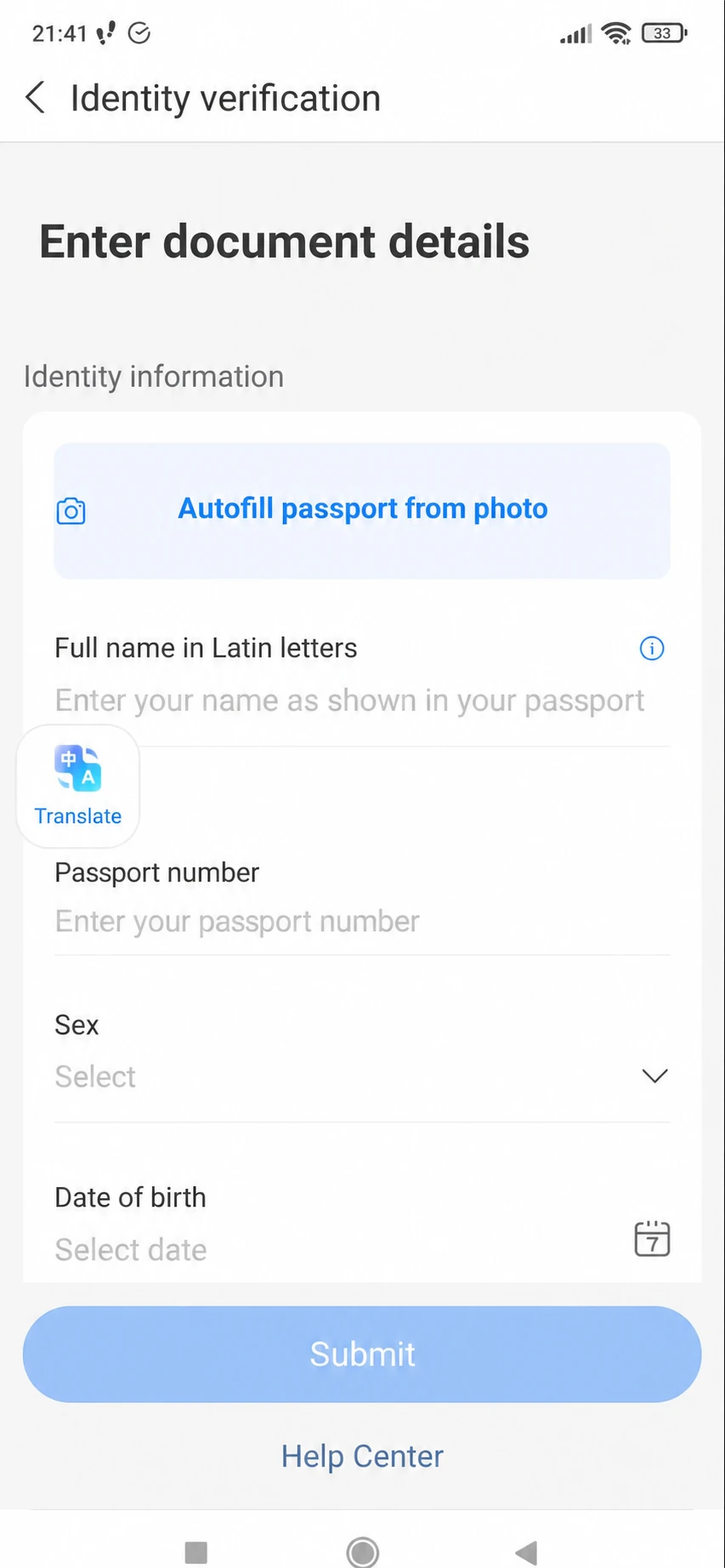
Copy these details from your passport:
- first and last names in Latin letters;
- document number;
- country or region of issue;
- sex;
- date of birth;
- expiry date.
Check every field before submitting. Do not translate or shorten your name, and do not swap the birth and expiry dates. If you use the camera to fill in the form, compare the recognised text with your document.
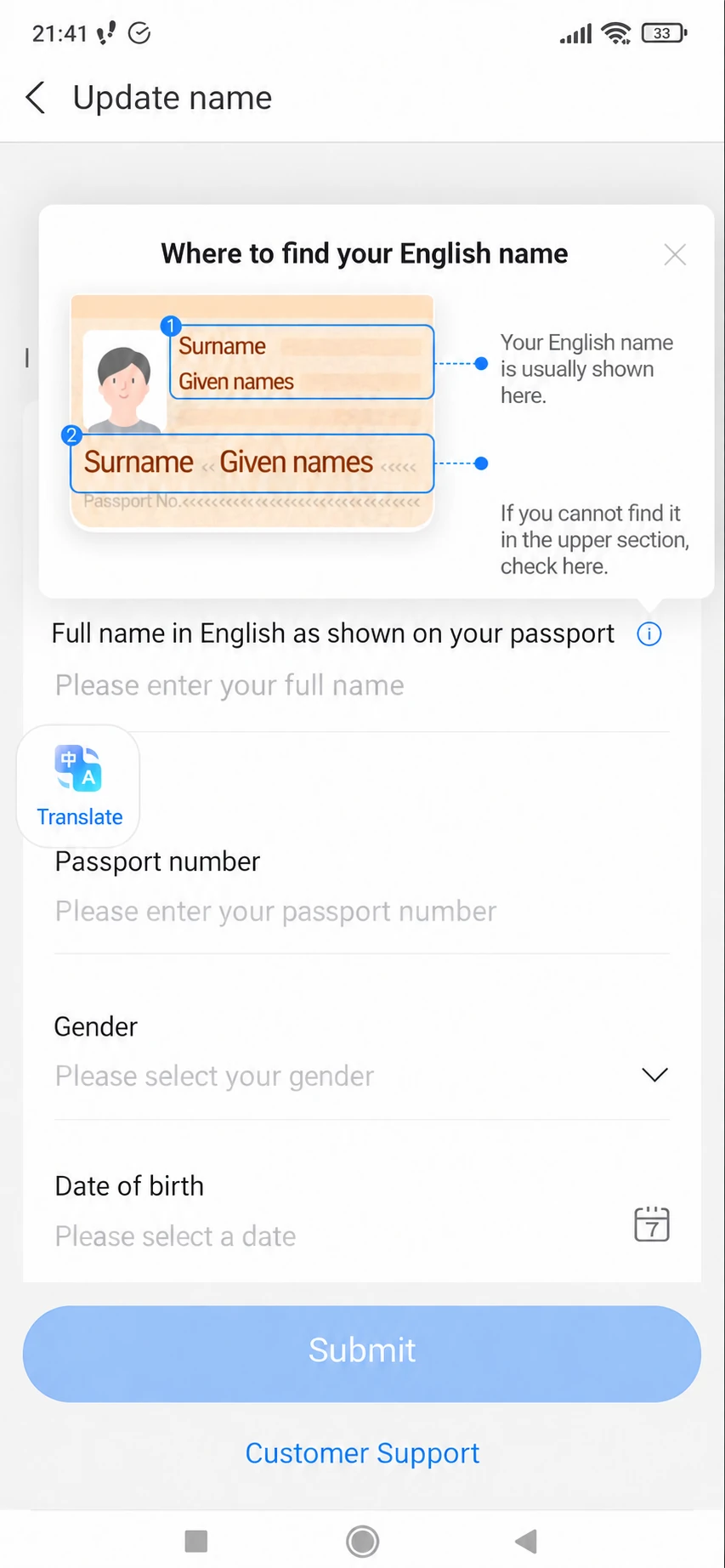
Tap Submit. To correct an error, return to the relevant field. Do not enter invented details to pass verification.
6. Upload your passport and complete the checks
Select Upload passport. Tap the photo button and allow camera access. To use an existing photo, select Upload from album.
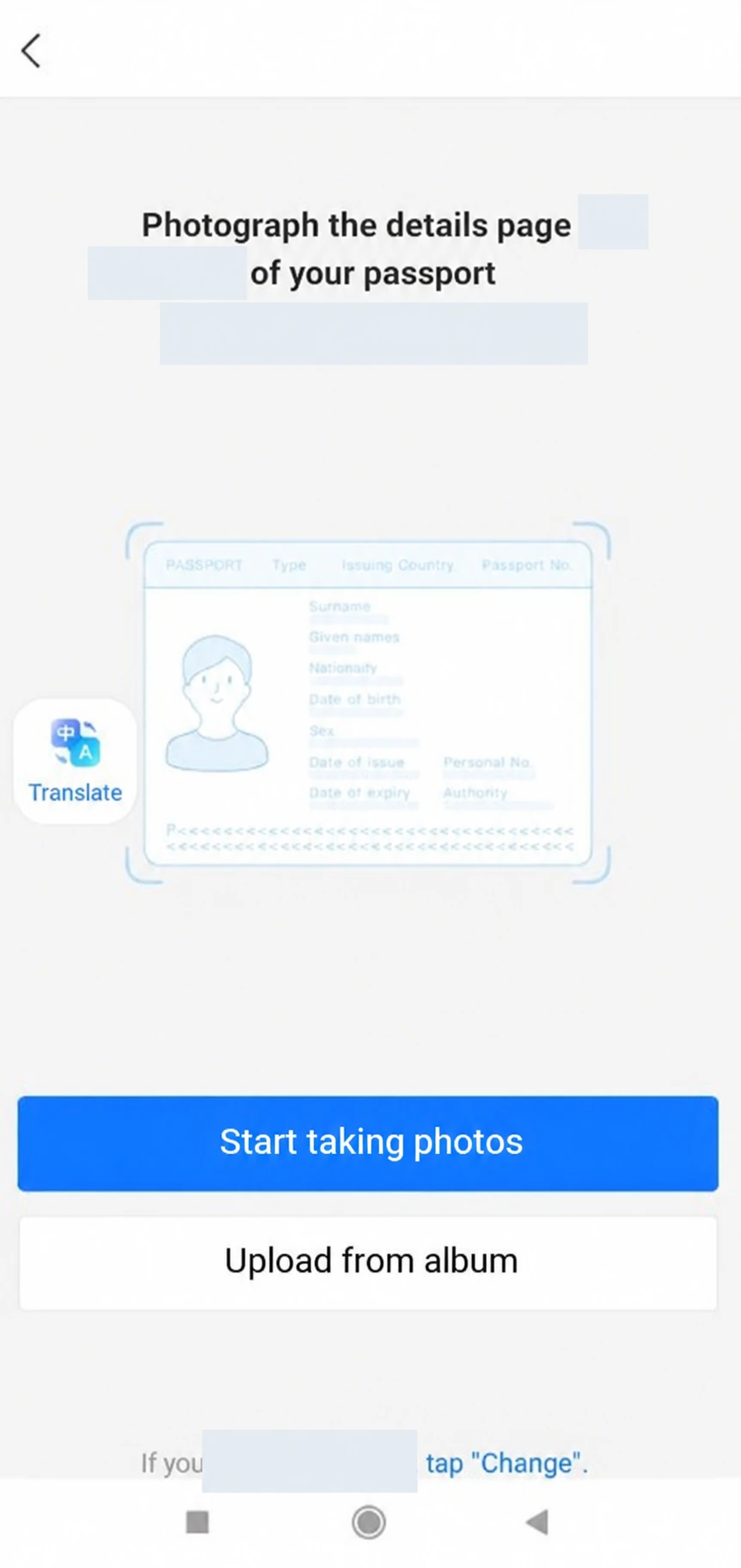
Capture the entire passport photo and details page. Keep every edge in the frame, with no glare obscuring the text, portrait or lines at the bottom. On the preview screen, tap Retake to take another photo, or Complete to submit it.
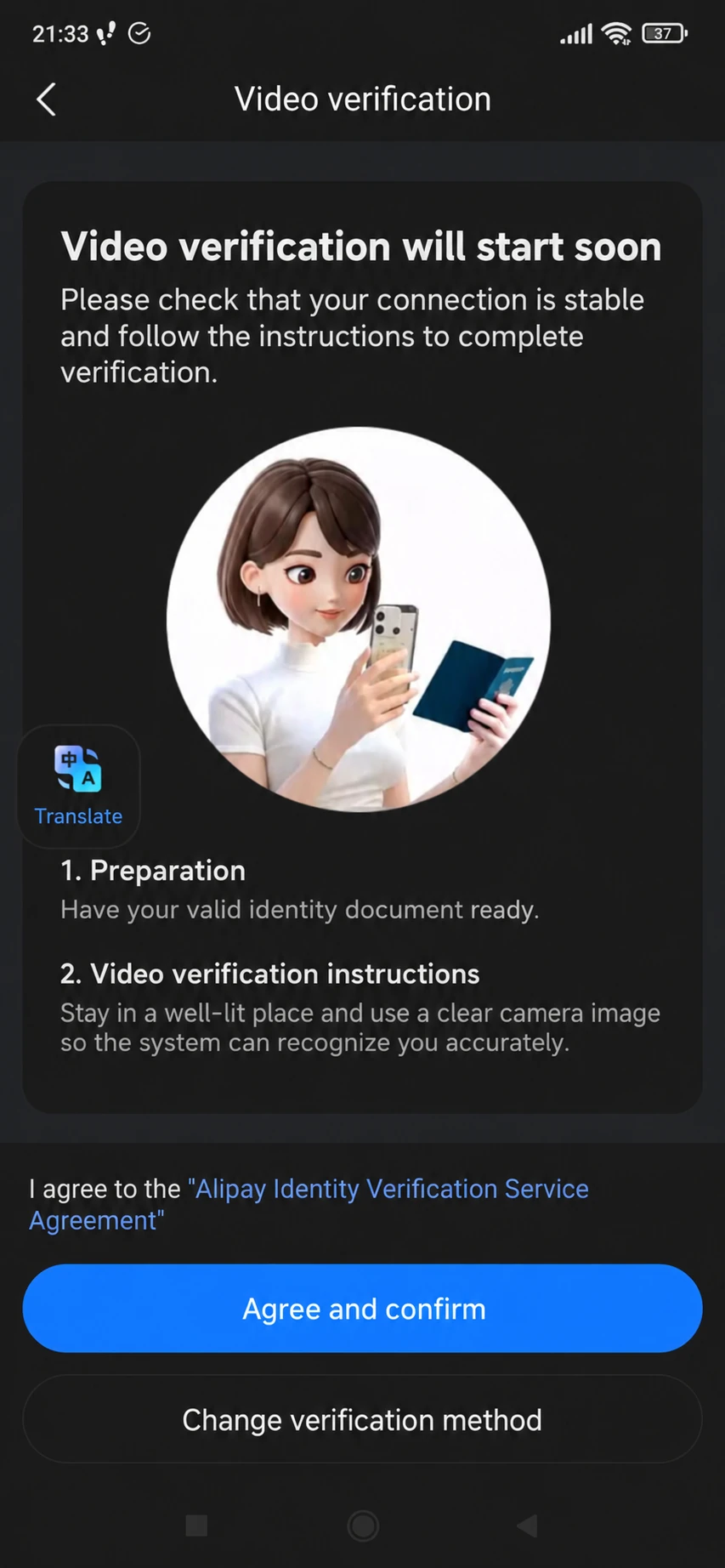
If video verification opens
Have your passport ready, read the terms and tap Agree and confirm. Follow the camera instructions: keep your face inside the frame and show your document when prompted. Use even lighting and remove anything covering your face. Complete the check inside Alipay; do not record a separate video to send to anyone.
After submission, return to Identity Information. An uploaded photo status confirms the upload, not completion of all verification. If the status is pending, wait for the result. If a correction is requested, open it and follow the instructions. Verification is complete when this section itself shows a successful result.
7. Enter your occupation and home address
In your identity details, open Basic identity information. If Occupation or Home address is marked as missing, open the row and fill it in.
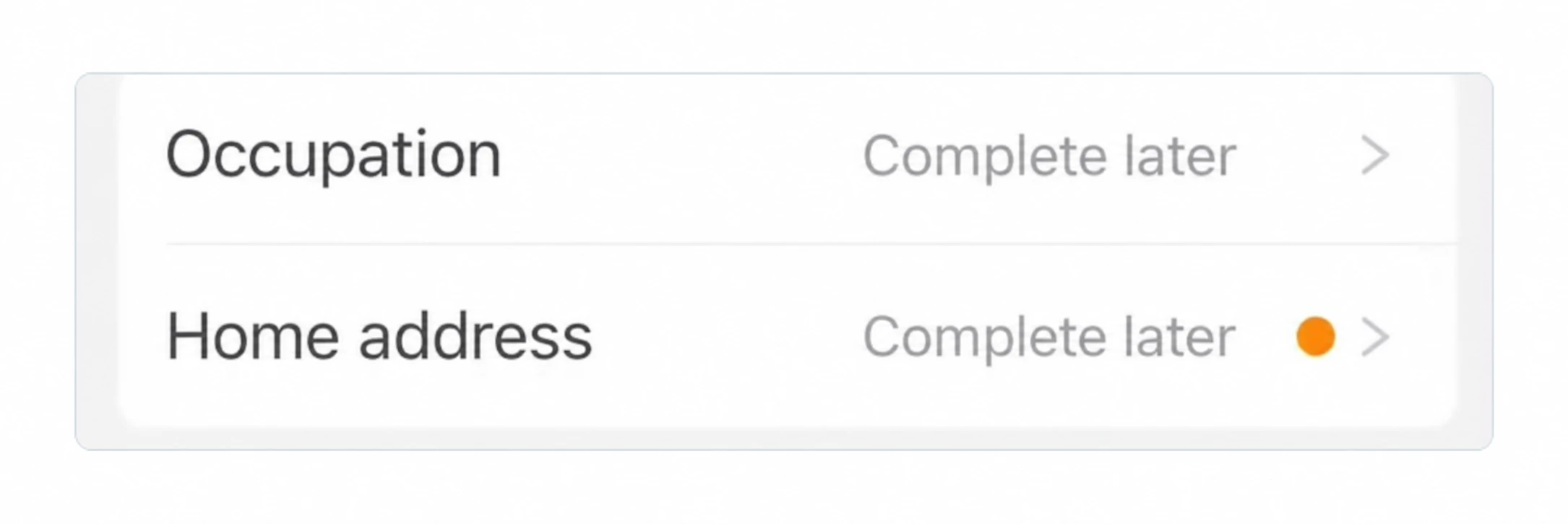
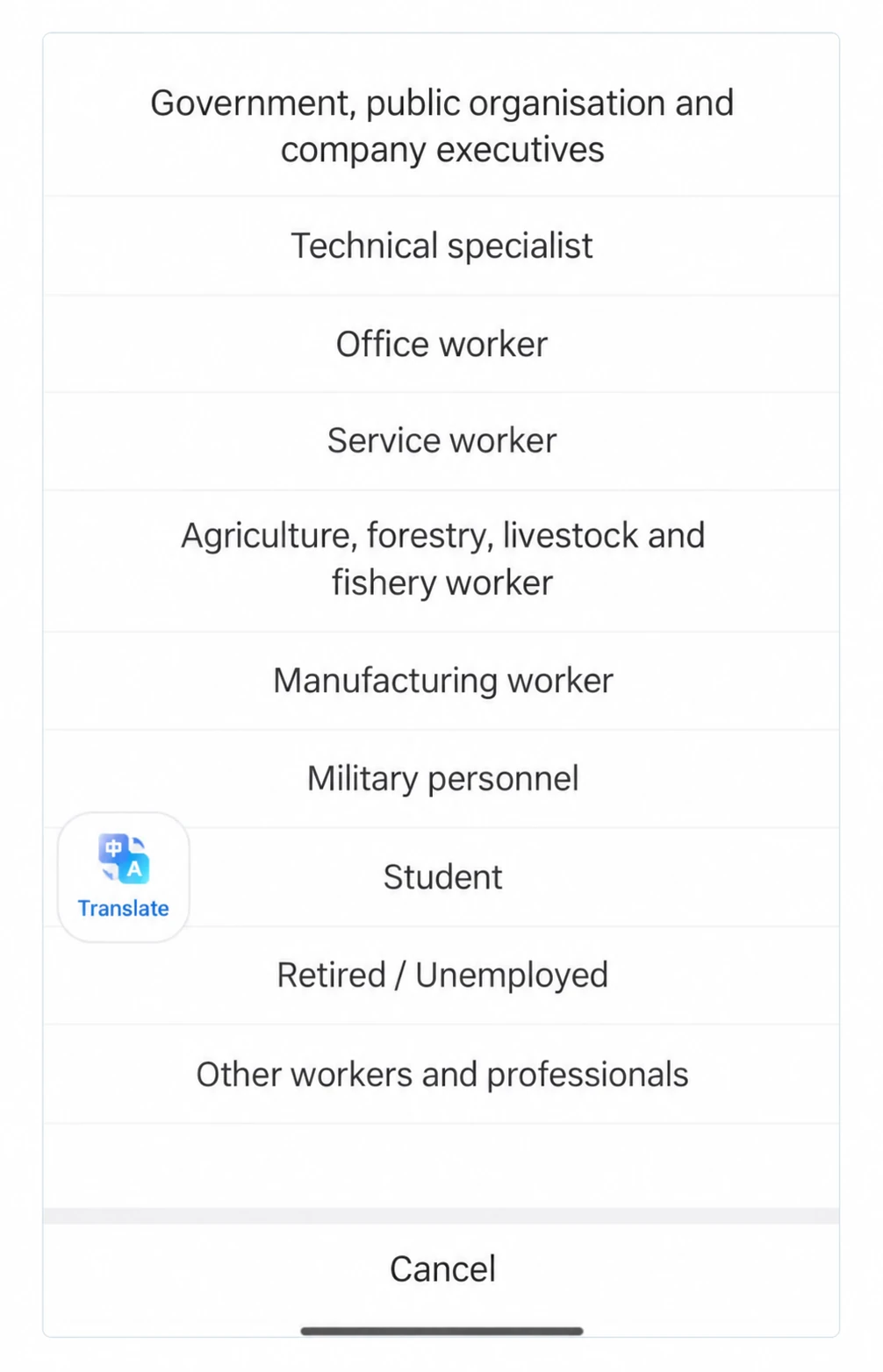
In the occupation list, select the category that matches your employment status.
For your home address, select your country or region first. Then enter your actual residential address in English, using Latin letters: city, street, building and apartment number. Write proper names in Latin letters. Do not use a hotel address instead of your home address.
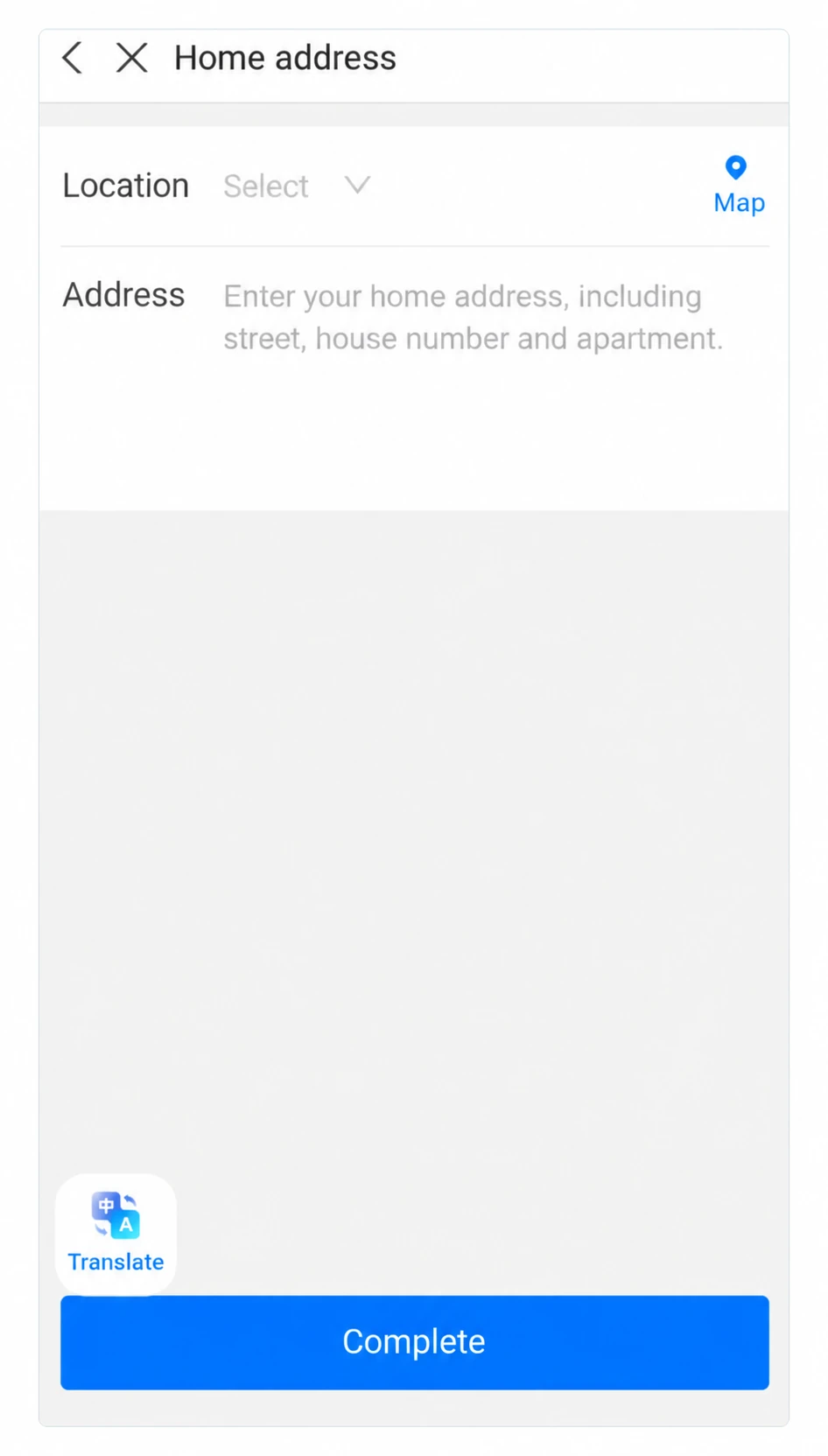
Tap Complete and check that no fields remain incomplete. Then check the overall identity verification status again.
8. Add a bank card
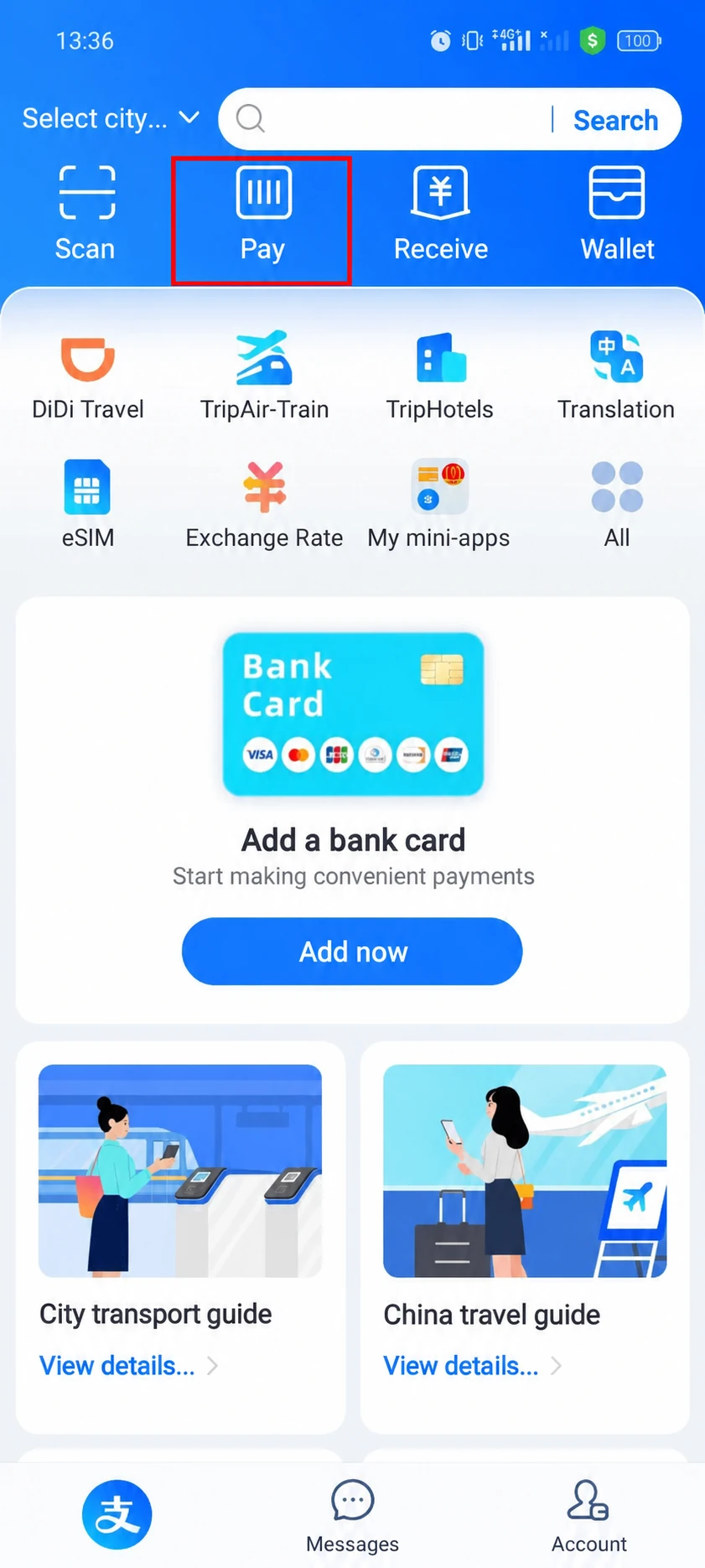
Open Account → Bank Cards → Add Bank Card. You can also tap Add now in the card section on the home screen.
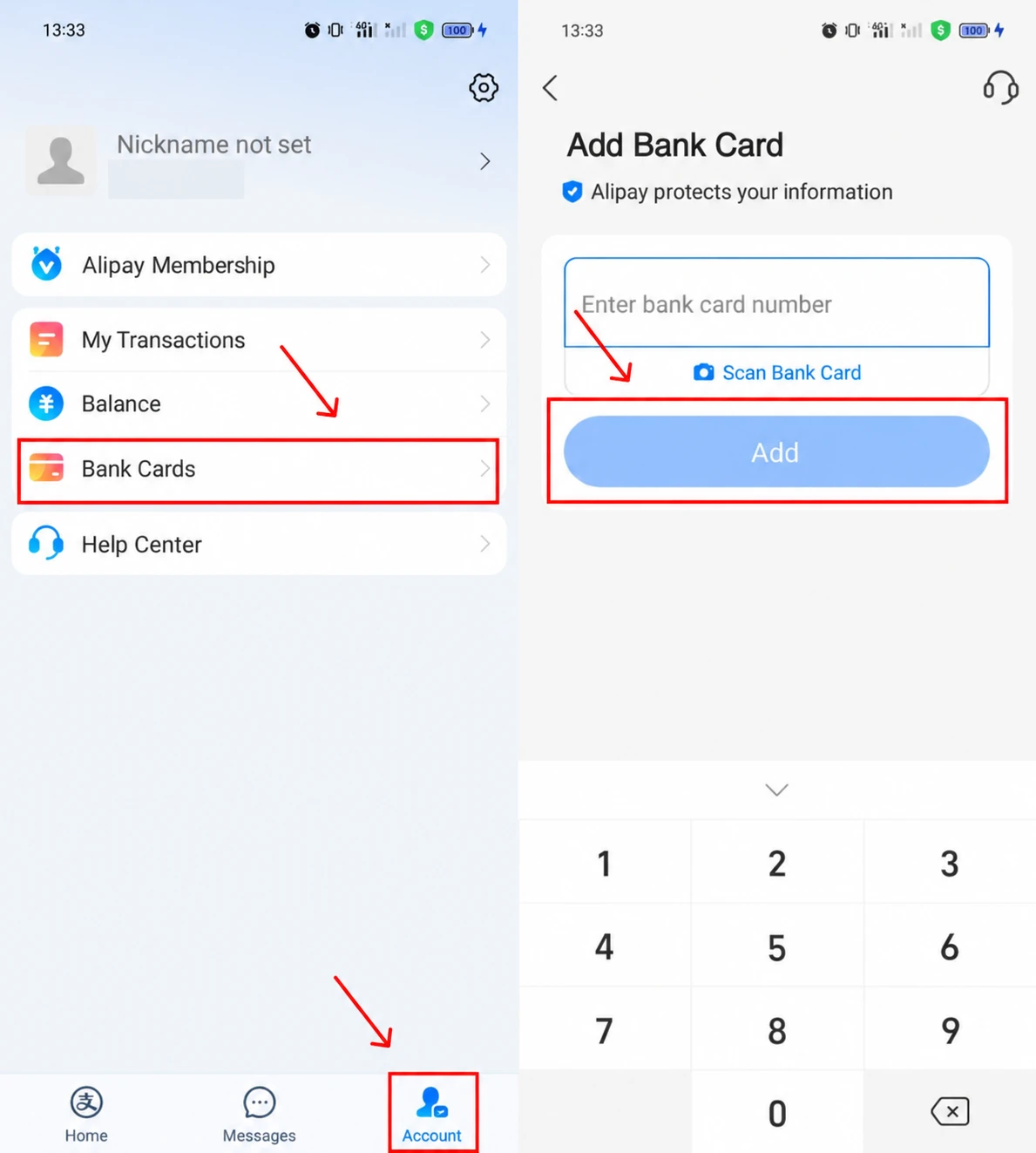
Enter your card number, then fill in the expiry date, security code and cardholder’s name. Enter the name as held by your bank. The card’s security code and Alipay’s six-digit payment password are different values.
If your bank requests confirmation, complete it by SMS or in your banking app, using the method shown on screen. Return to Bank Cards and check that the card appears in the list.
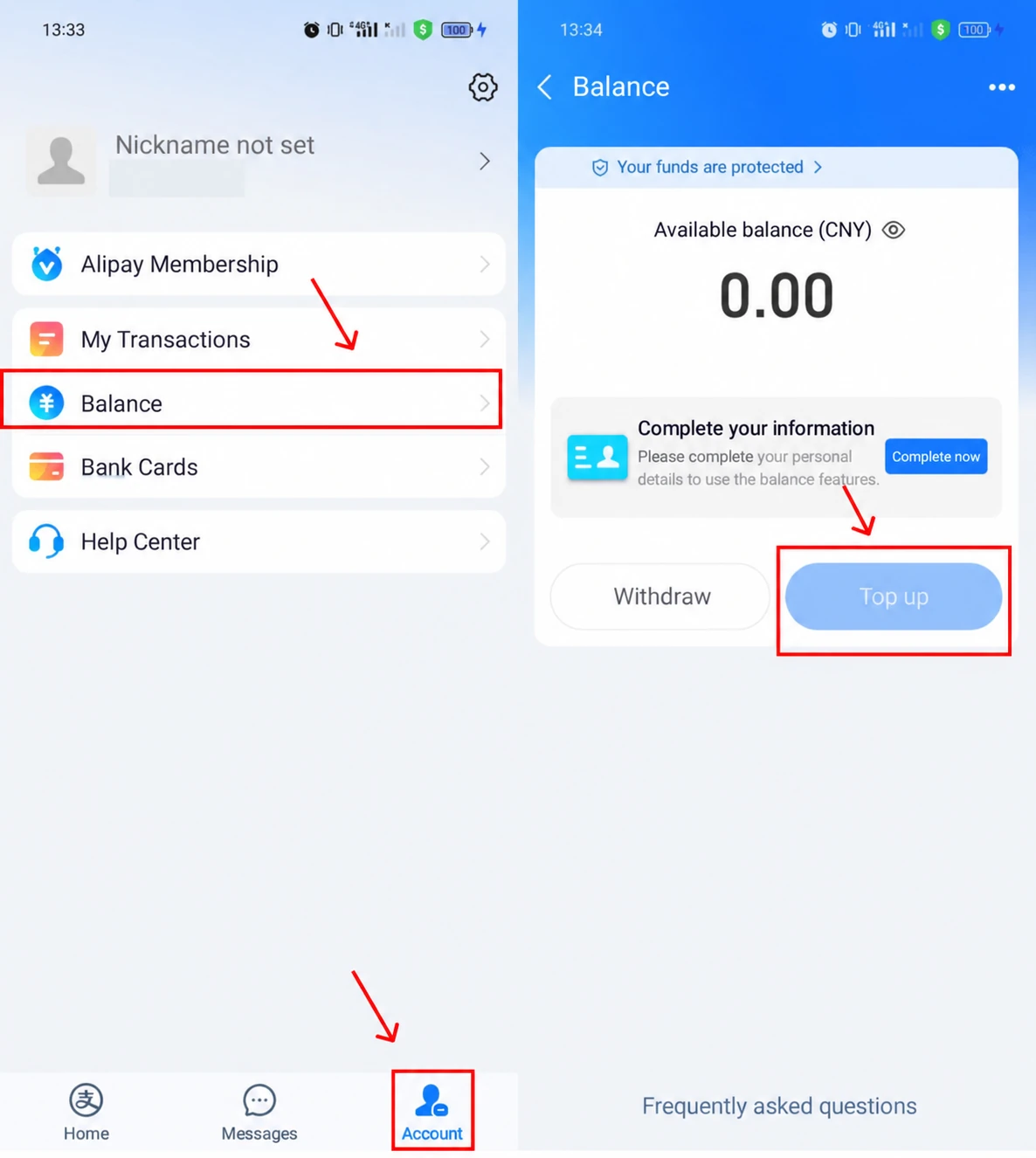
You do not need to top up your balance. Select the linked card when paying: the money is charged to that card. Overseas cards are used for supported merchant purchases. Transfers to another person and wallet top-ups from that card are outside this payment route.
9. Pay for a purchase
You scan the merchant’s code
Tap Scan, point the camera at the QR code and open the payment. Check the recipient’s name. If the amount field is empty, enter the purchase amount. Select your card, check the fee and confirm payment.
The merchant scans your code
Open Pay or the payment tab within Pay/Receive. Check the selected card and show the code to the cashier. Do not send your payment QR code or barcode to other people.
A personal transfer code is different from a merchant QR code. If your overseas card is unavailable for the selected code, ask the merchant for another supported payment method.
10. Check the result and transaction history
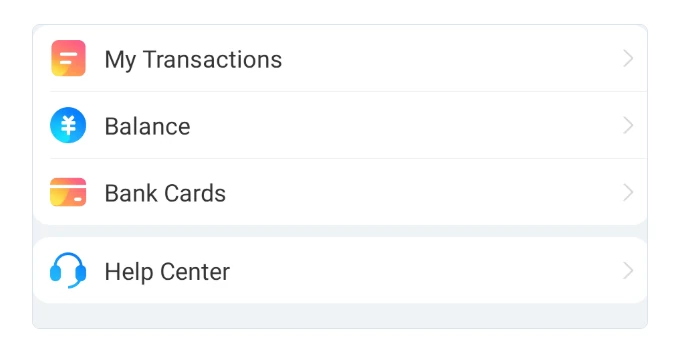
Wait for the payment success message. Open Account → Bills / My Transactions and find the purchase. Check the recipient, amount and status.
If your card has been charged but the result in Alipay is unclear, compare the app’s history with your bank’s notifications first. Do not repeat the payment until you know the result. For a refund, contact the merchant with the transaction details. Raise a disputed charge with Alipay and your bank.
Balance, Receive and Wallet: what these sections do
Balance shows the money held in your Alipay wallet. A top-up button does not mean that your overseas card supports top-ups. For a regular purchase, select your card on the payment screen.
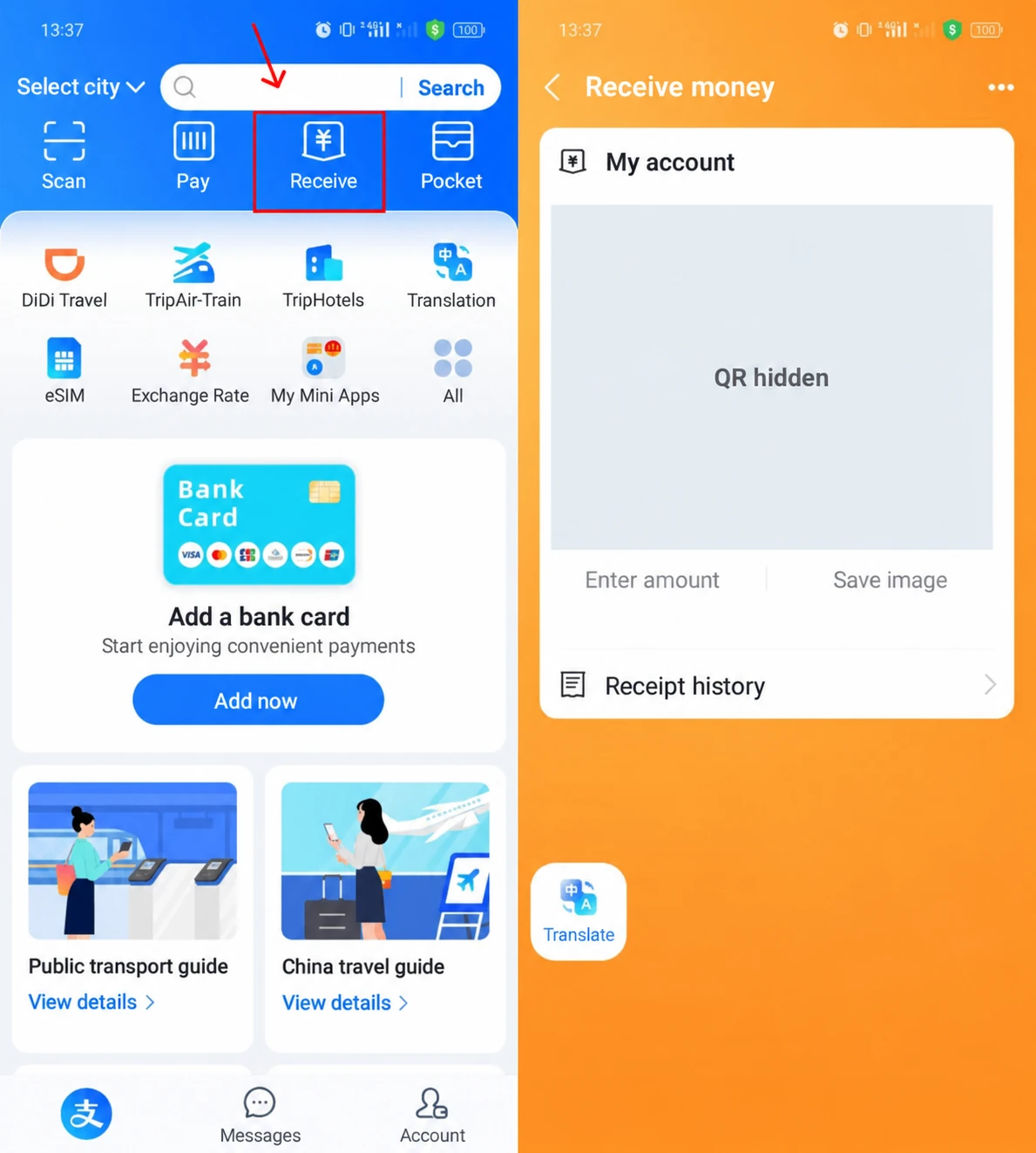
Receive opens a code for incoming transfers. Do not show it to a cashier instead of your payment code. Incoming transfer availability depends on your account and the service used.
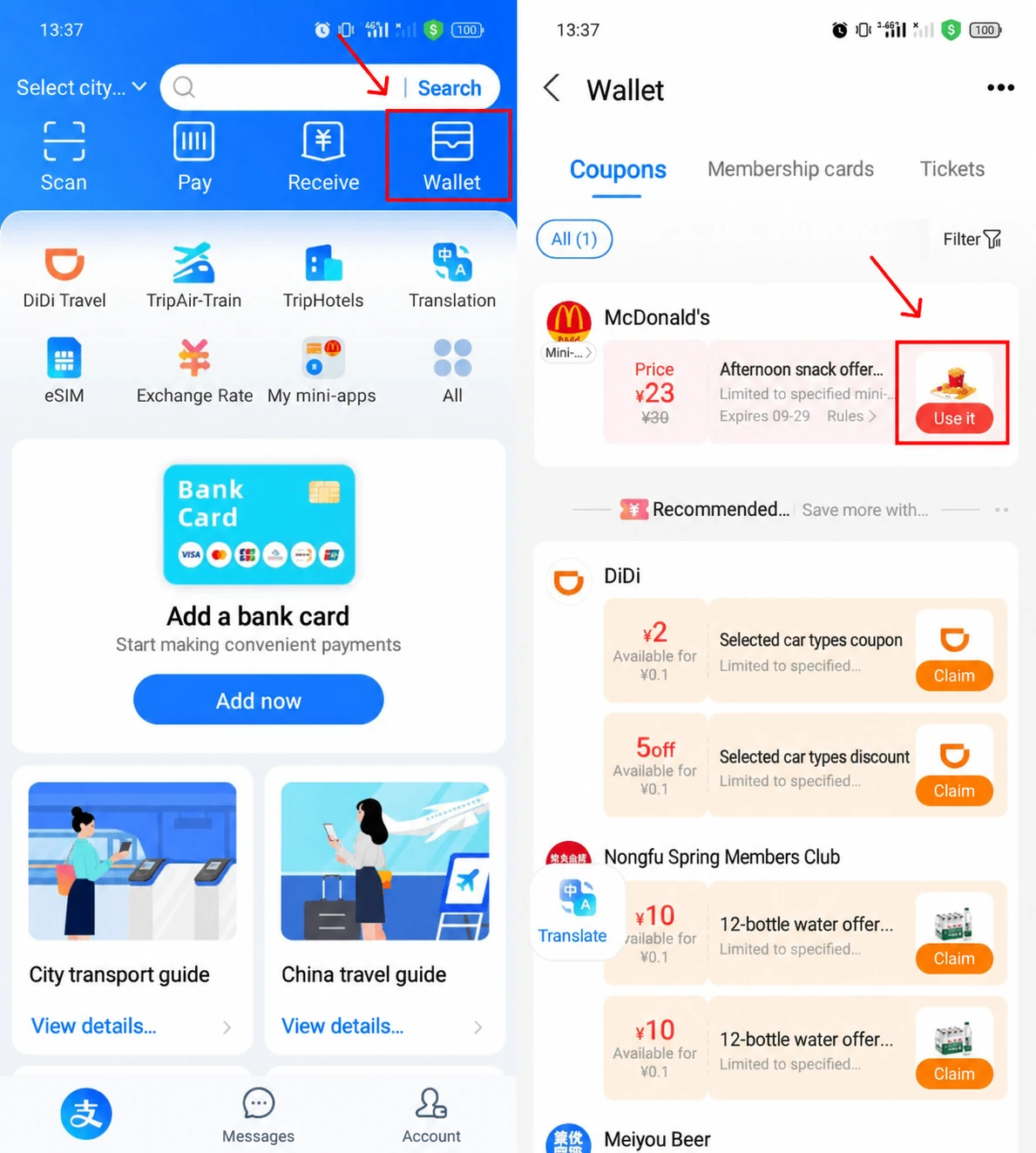
Wallet contains cards, tickets and coupons. You do not need to fill in this section to register or link a bank card.
Fees and limits
Overseas card purchases of up to and including RMB 200 are generally exempt from the platform fee. For a purchase above RMB 200, the standard fee is 3% of the full amount: RMB 9 on a RMB 300 purchase. Check promotions and card terms on the confirmation screen. Currency conversion and any additional bank fees are separate.
The limit for a payment depends on your account, identity verification, bank and merchant. Check the amount allowed by the app and your card’s limits. A linked card does not guarantee approval of every transaction.
If something goes wrong
| Problem | What to do |
|---|---|
| No SMS | Check your number, SMS reception and the resend timer. If the registration screen offers email registration, use that option. |
| Registration freezes over Wi-Fi | Switch to mobile data. If it fails again, read the error message and contact support. |
| Passport rejected | Check the document type, name, number and dates. Photograph the entire page again without glare. |
| Facial check fails | Follow the camera prompts in even lighting. Wait for the interval specified by the app before trying again. |
| Card added but payment declined | Check your funds, international payment settings and bank confirmation. Ask the merchant whether overseas card payments are supported. |
| Forgotten password or restricted account | Use Alipay’s recovery options and Help Center. Do not share passwords or SMS codes with anyone promising to remove a restriction. |
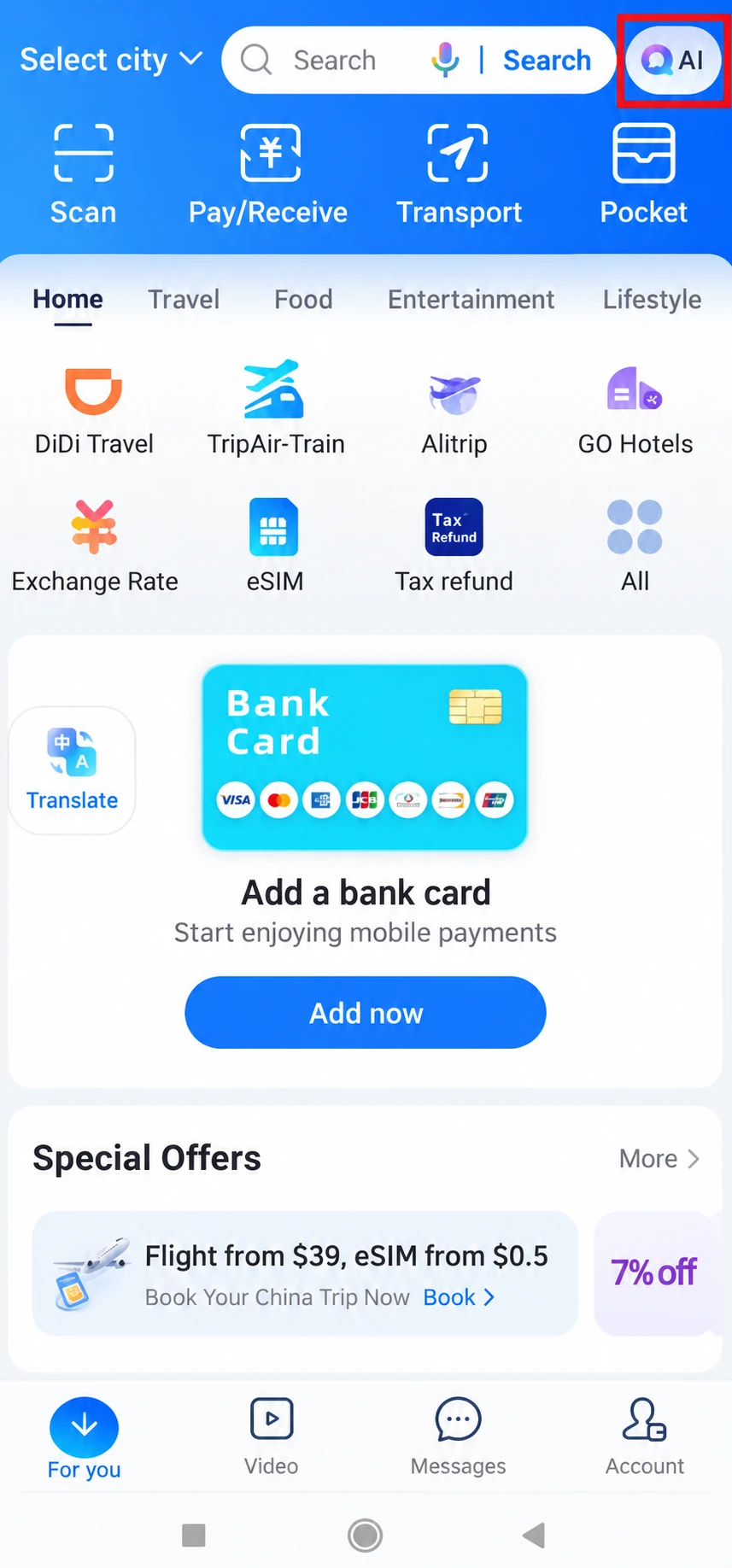
For help with a particular screen, open the assistant or Help Center. Describe the action and error message. An assistant’s answer does not replace the verification or payment status shown in your account.
Before travelling, keep access to your phone number and banking app, check that your profile is complete and your card is listed. Test your first payment with a small purchase in China, and bring a backup payment method.